
Having several operating systems on one computer can be a useful option. Dual booting lets you keep Windows for demanding features —a professional application, a game or a specific driver— when running Windows inside a Linux virtual machine is not enough. It also gives people starting with Linux Mint a fallback: if something goes wrong, Windows remains available from the boot menu.
Unlike VirtualBox, this procedure changes the physical computer’s storage and boot process. A wrong partition choice can make a system inaccessible. Back up your data, read the full guide and stop if a screen does not match the explanation.
Before you start: why choose dual boot
When it can be a good option
Dual booting makes sense when Windows needs direct access to the hardware and a virtual machine introduces performance loss or incompatibilities. At startup, GRUB will show Linux Mint and Windows Boot Manager, so you can choose with the keyboard.
What changes compared with a virtual machine
- Both systems can use the CPU, memory, graphics and peripherals directly.
- Only one system is running at a time; switching requires a restart.
- The partitions are real, so a verified backup is essential.
- A Windows update can change the UEFI boot order.
1. Back up your data and check BitLocker
1.1. Save the recovery key
Copy important files to another drive or service and check that the copy opens. If the device uses BitLocker or device encryption, locate the 48-digit recovery key and store it away from the computer. It may be linked to a Microsoft account, a work or school account, a USB drive or a printed copy.
- In Windows, search for Manage BitLocker or Device encryption.
- Use the option to back up the recovery key.
- If appropriate, verify it at your Microsoft account recovery-key page.
1.2. Gather the requirements
- Windows 10 or 11 with enough free space for Linux Mint.
- An 8 GB or larger USB drive that can be erased.
- Internet access and administrator permissions.
- The 64-bit Cinnamon Linux Mint ISO.
- Time to read each installer screen carefully.
2. Check UEFI, GPT and Windows
2.1. Confirm UEFI mode
On a modern computer, Windows normally uses UEFI and a GPT partition table. Press Win + R, enter msinfo32 and inspect BIOS Mode. You can check the disk partition style in Disk Management.
Windows and Mint must be installed in the same mode. If Windows uses UEFI, boot the USB from the entry beginning with UEFI:, not Legacy or CSM.
2.2. Temporarily disable Fast Startup
In Control Panel → Hardware and Sound → Power Options, disable Turn on fast startup if it is available. This prevents Windows from leaving its partition hibernated while Linux tries to inspect it.
3. Download and verify Linux Mint
3.1. Download the ISO
- Open the official Linux Mint downloads page.
- Choose the 64-bit Cinnamon Edition.
- Keep the checksum and signature files as well.
3.2. Check SHA256
In PowerShell, calculate the checksum and compare it with the value published by Linux Mint:
Get-FileHash -Algorithm SHA256 "$env:USERPROFILE\Downloads\linuxmint-22.3-cinnamon-64bit.iso"If it does not match exactly, download the ISO again and do not continue.
4. Free space without deleting Windows
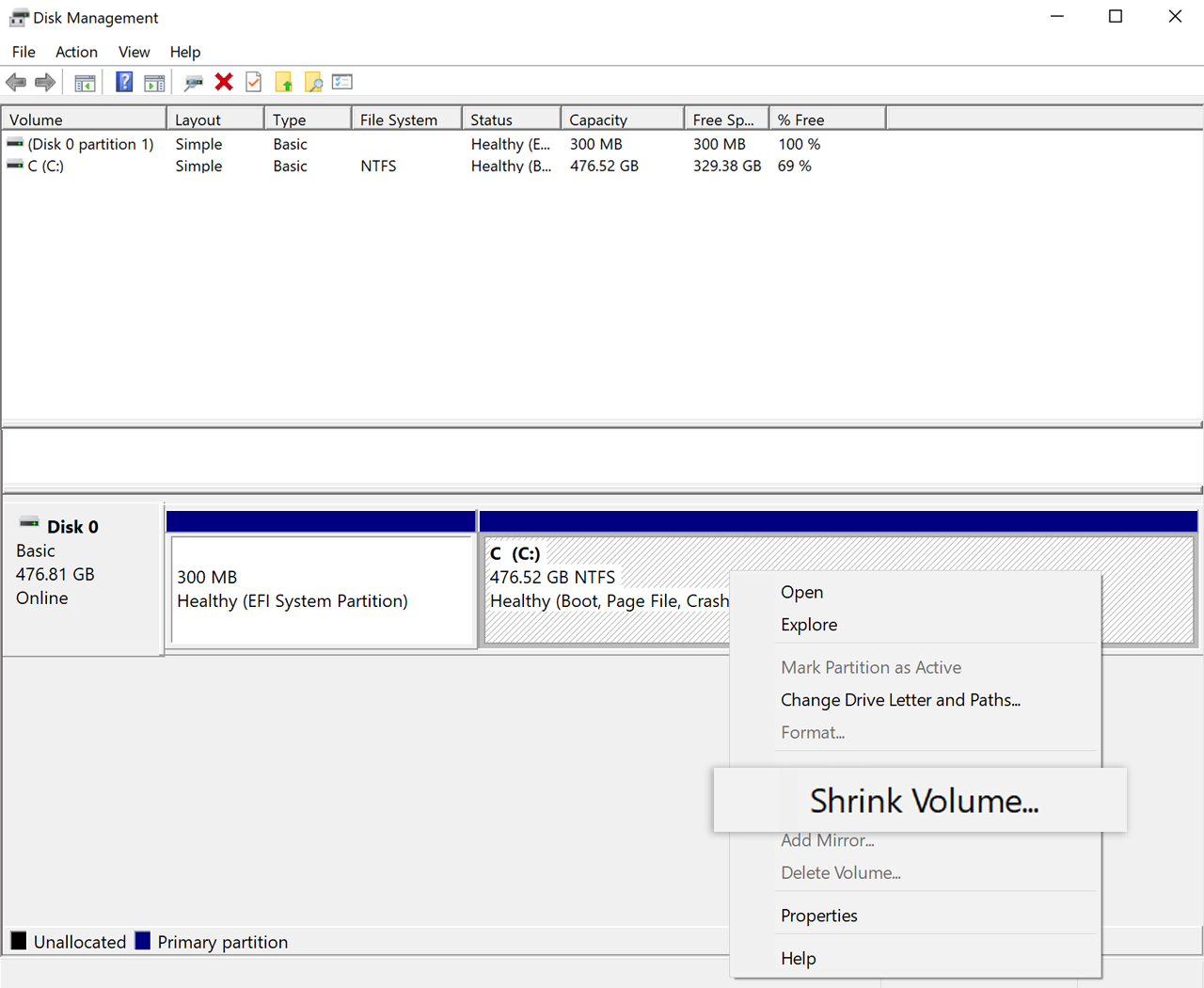
4.1. Shrink the partition from Windows
Mint needs unallocated space. Do not create or format Linux partitions from Windows.
- Open Disk Management from the Start context menu.
- Identify the Windows volume, usually
C:. Do not select EFI, Recovery, OEM or an external drive. - Right-click the Windows volume and choose Shrink Volume.
- Reserve at least 60 GB for a comfortable desktop installation.
- Confirm and check that a black Unallocated area appears. Do not assign it a drive letter or format it.
4.2. Stop if the disk map is unclear
5. Create the installation USB
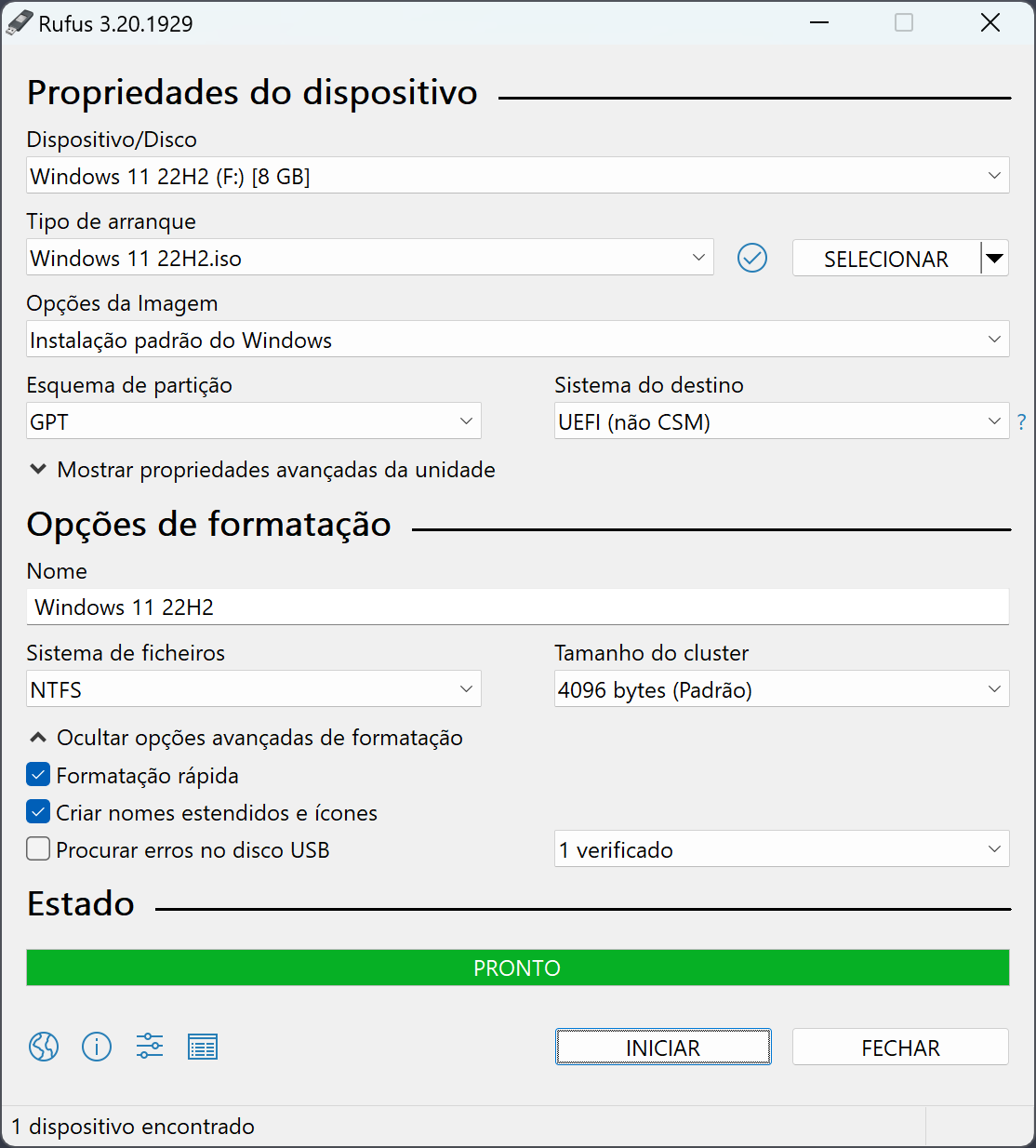
- Install Rufus from its official site.
- Select the ISO and then the correct USB drive.
- Click START and wait for verification.
The USB will be erased. Write the ISO as a bootable image rather than copying it as a normal file.
6. Boot the installer in UEFI mode
- Shut Windows down completely and connect the USB.
- Turn on the computer and open the manufacturer’s boot menu, often F12, F9, Esc or another key.
- Select the USB entry that includes UEFI.
- Choose Start Linux Mint and test the keyboard, network and display.
7. Install Mint alongside Windows
7.1. Choose the automatic option
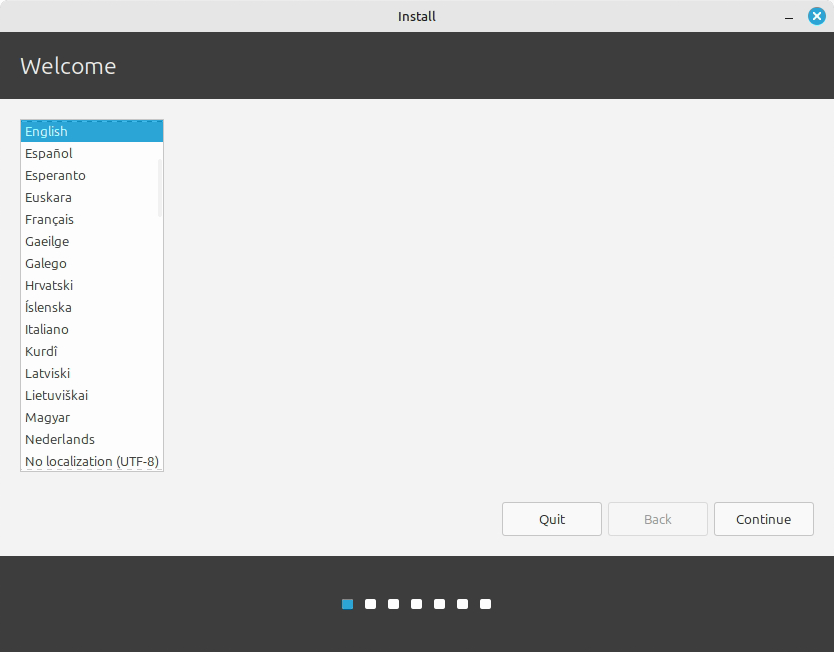
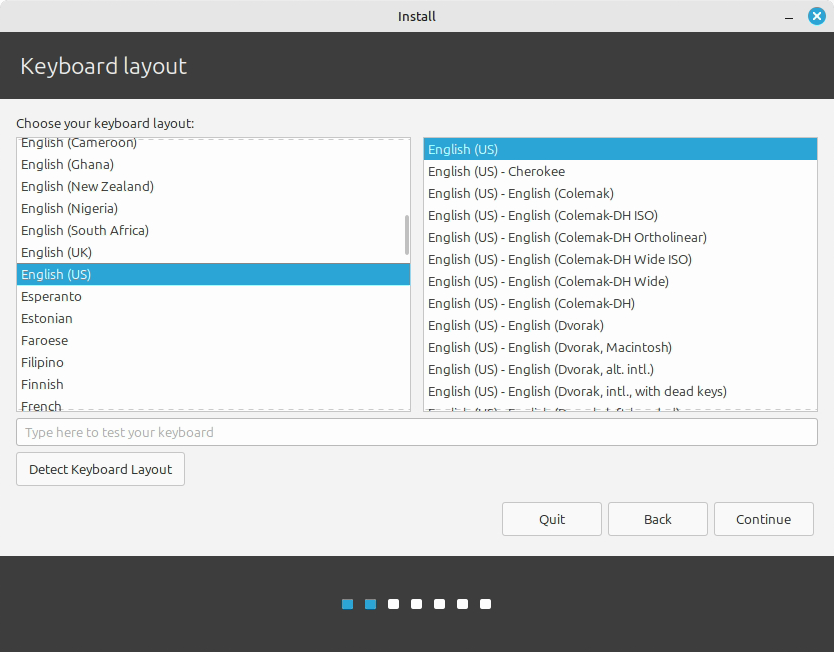
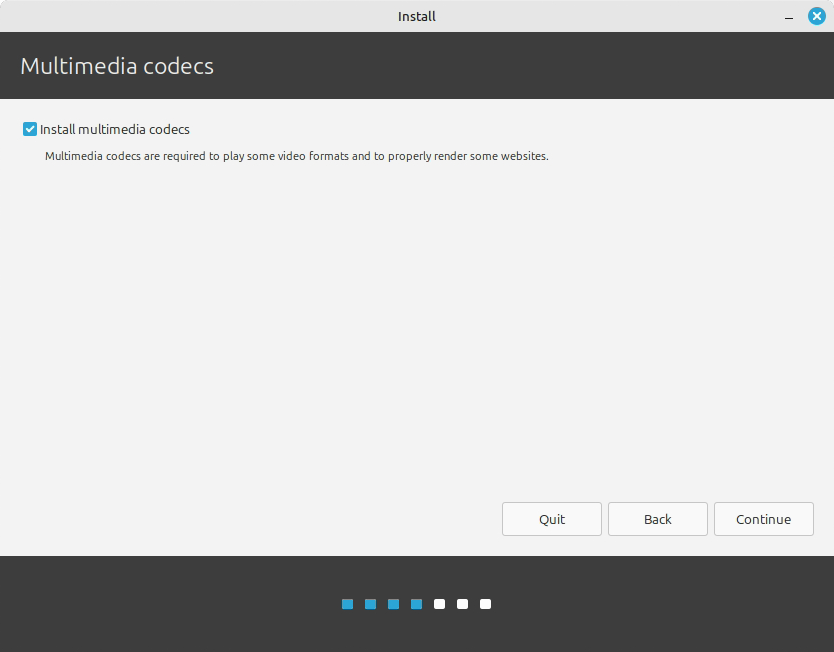
- Open Install Linux Mint and choose language and keyboard.
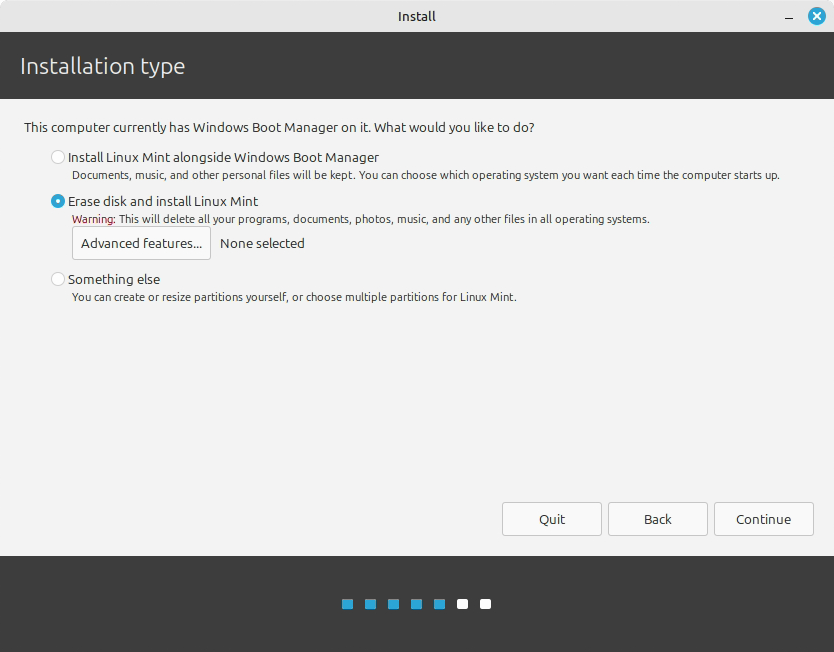
- Under Installation type, choose Install Linux Mint alongside Windows.
- Review the diagram: Windows must remain and the new space must be assigned to Mint.
- Only after reviewing the summary, confirm with Install Now.
7.2. What manual partitioning means
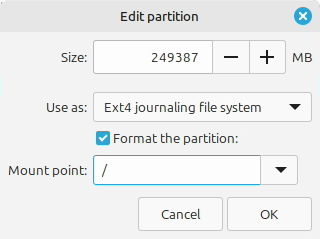
Something else lets you choose partitions manually, but you must distinguish EFI, NTFS, ext4 and /. Do not format the EFI or any Windows partition. If you are unsure, return to the automatic option.
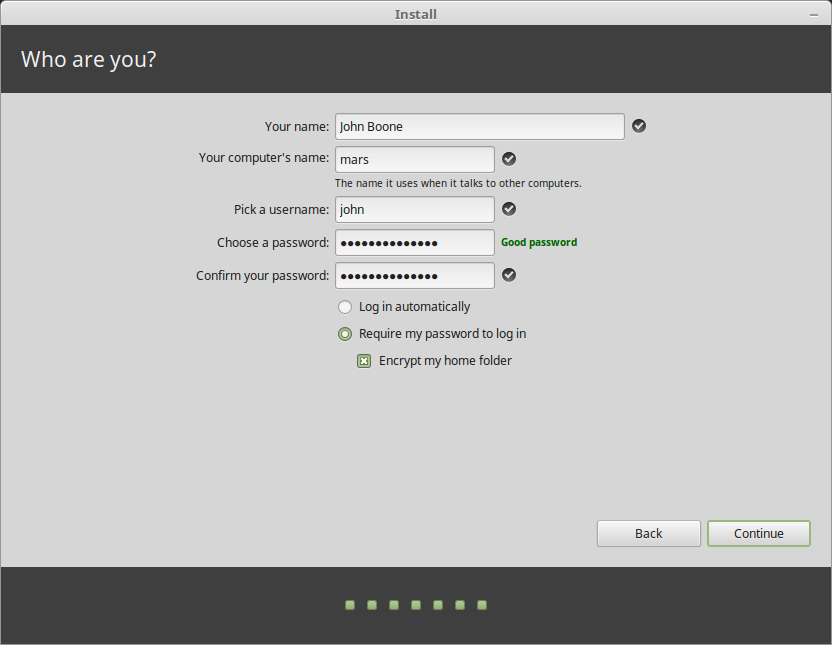
7.3. Complete the user setup and restart
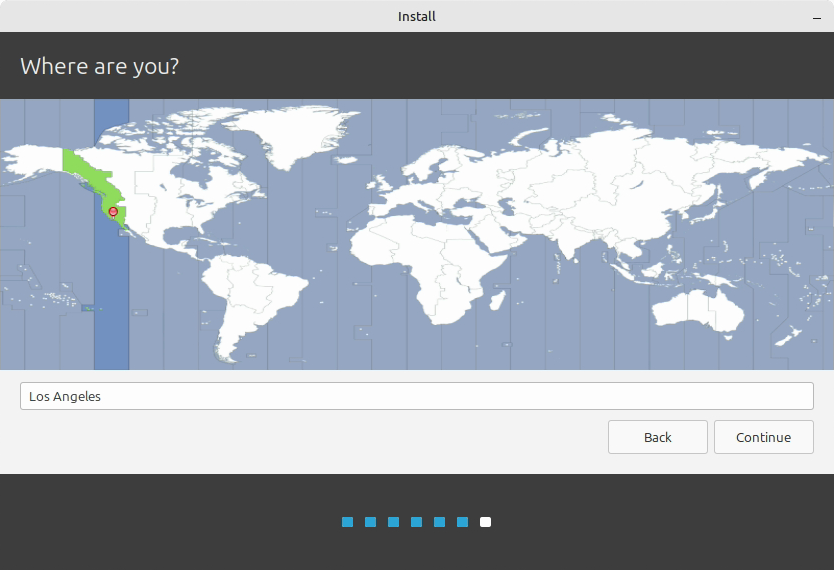
- Choose the time zone and keyboard layout.
- Create a local user and a strong password different from the Windows password.
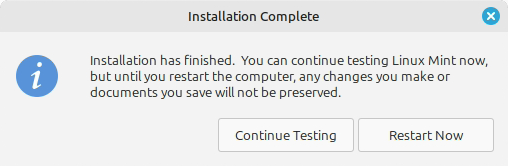
- Wait for the files to be copied without powering off the computer.
- Restart and remove the USB when prompted.
8. Use GRUB to choose the system
8.1. First boot
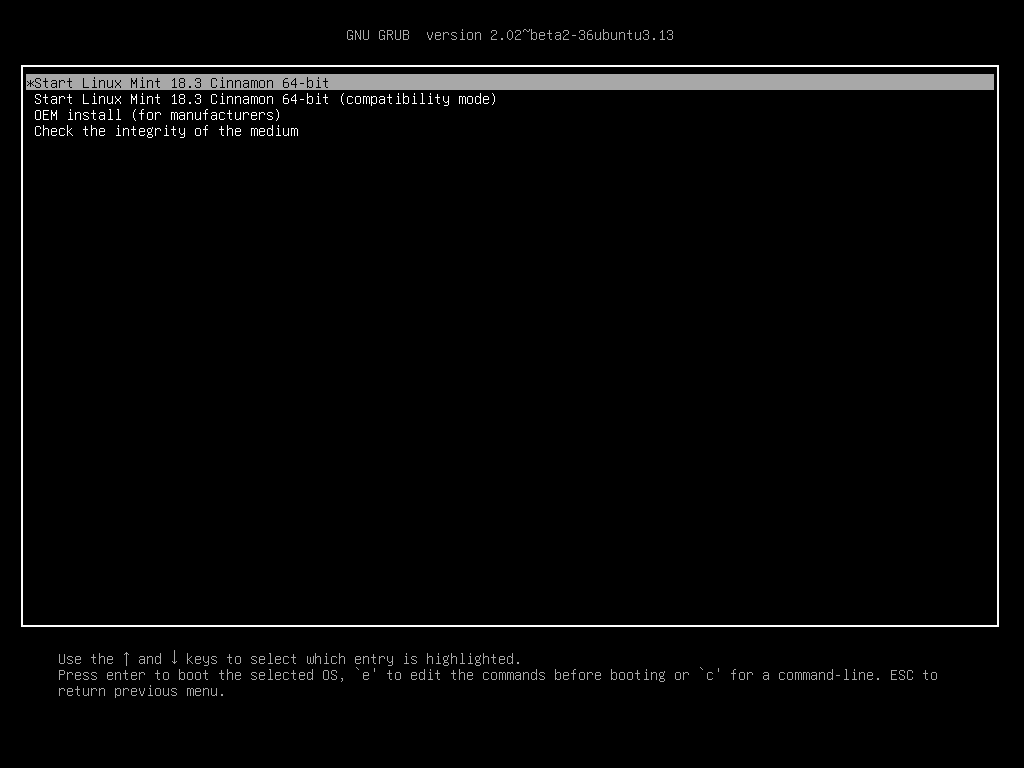
GRUB should show Linux Mint and Windows Boot Manager. Test both entries before changing any default.
8.2. Change the default system carefully
If the computer goes straight to Windows, open the UEFI boot menu and look for Linux Mint or ubuntu: Mint uses «ubuntu» as its EFI name for technical reasons. If you can enter Mint, sudo update-grub will often detect Windows again. Do not run grub-install against a disk you have not identified.
9. Updates, recovery and common problems
9.1. BitLocker asks for the key
Use the saved key and check the recovery identifier. If you cannot find it, recover the key before making further changes.
9.2. Mint is missing from the boot menu
Check the UEFI boot order. If necessary, start the Mint USB in UEFI mode and consult the official EFI guide.
9.3. «Alongside Windows» is missing
This can happen if the USB was booted in another mode, Windows is hibernated, encryption blocks inspection or there is no real unallocated space. Cancel and review the situation; do not choose «Erase disk» as a fix.
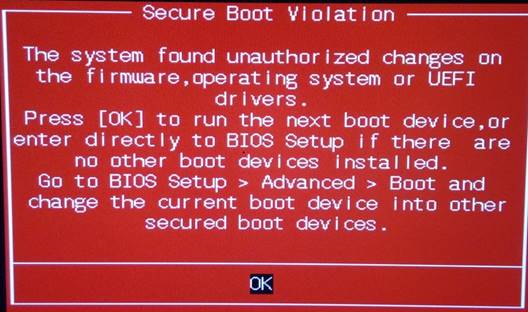
9.4. Windows changes the boot order
Select Linux Mint from the UEFI menu. If needed, boot the USB and follow the EFI boot-order documentation. The aim is to correct the order, not to delete a partition.
9.5. Neither system boots
Keep the BitLocker key available and use the official Windows recovery tools or the Linux Mint guide according to the system you need to repair. Do not format anything blindly.
10. Final checklist
- You have a verified backup.
- The BitLocker recovery key is stored away from the computer.
- Windows and the USB were booted in UEFI mode.
- The ISO matches the official SHA256 checksum.
- You left unallocated space and did not format it from Windows.
- The installer summary keeps Windows and does not show «Erase disk».
- Linux Mint and Windows Boot Manager appear in GRUB.
- You know how to open the UEFI menu and recover the key if needed.
Sources and maintenance notes
Consult the official Linux Mint installation guide, its multi-boot and EFI sections, Microsoft’s documentation for Disk Management and BitLocker recovery, and the GNU GRUB manual.
Screens and menu names vary by manufacturer and version. Always review the change summary before confirming. This is educational material and does not replace a backup or advice about a specific computer.